Save Code Snippets Locally: A Complete Guide
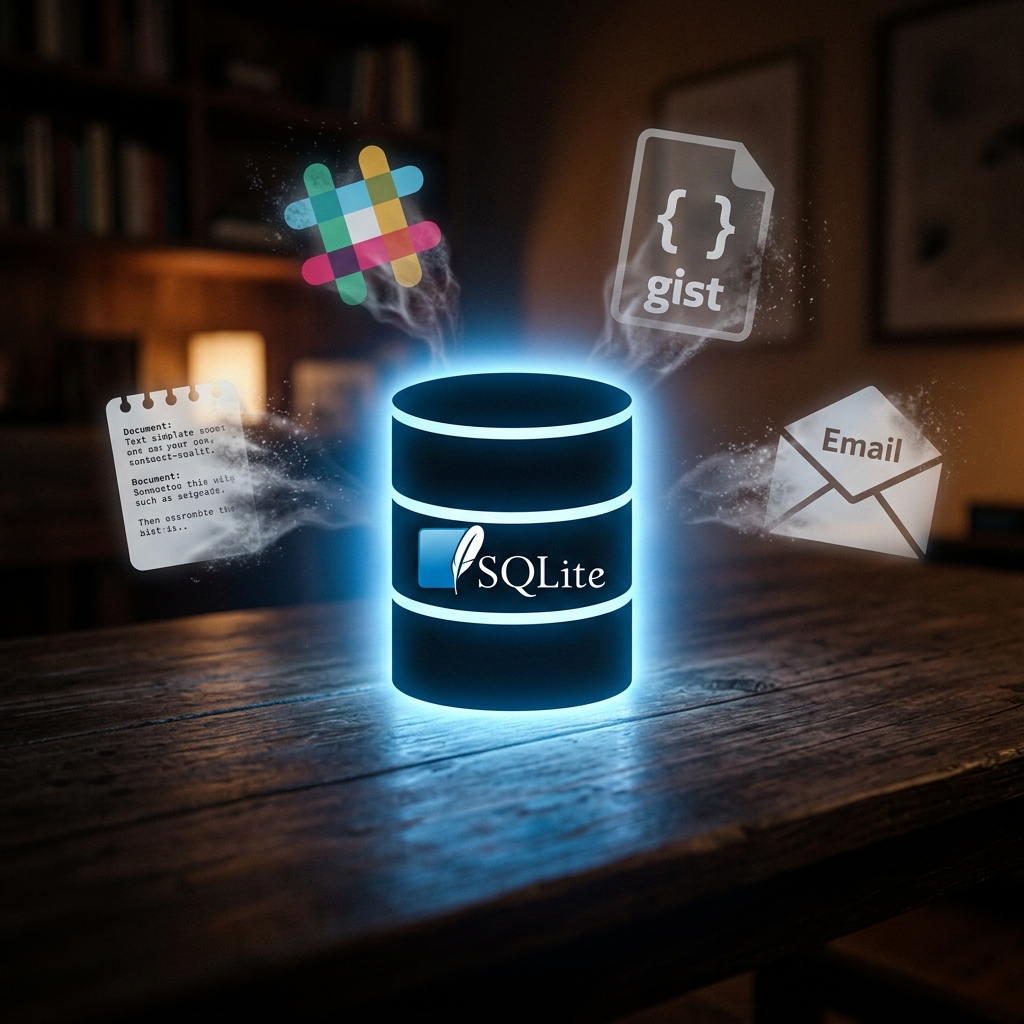
The cloud promised to make our data available everywhere, and it delivered. But the cloud also made our data available to everyone else—the cloud providers, their employees, hackers who breach their systems, governments with legal authority, and AI companies looking for training data. For code snippets, which often contain exactly the information attackers want, this tradeoff deserves scrutiny.
Local storage offers an alternative. Your snippets on your disk, accessible instantly, controlled entirely by you. The approach requires some self-reliance that cloud tools abstract away, but for developers who value privacy, speed, and independence, the tradeoffs favor local.
Why Local Makes Sense for Snippets
Consider what’s actually in a typical developer’s snippet collection. Years of accumulated code, saved casually in the flow of work. That includes the utility functions you’re proud of, but also: API keys from debugging sessions, database connection strings with real credentials, proprietary algorithms representing months of work, internal URLs that reveal company infrastructure, authentication code with hardcoded test passwords.
The casual nature of snippet saving means these sensitive items accumulate without deliberate review. You don’t think “I’m about to save something sensitive”—you just save what’s useful and move on. Cloud snippet managers store all of this on their servers, where it’s exposed to risks beyond your control.
Local storage eliminates that exposure. Your snippets exist only on your disk. No server can be breached because there’s no server. No employee can access your data because there’s no access path. Your code remains exactly where you saved it, accessible exactly to you.
The Speed Advantage
Privacy isn’t the only benefit of local storage. Local is inherently faster.
Cloud-based snippet search works like this: your query travels from your keyboard to their server (50-200ms depending on network conditions), gets processed (10-100ms), results travel back (50-200ms), and then render on your screen. Best case, you’re looking at 150-300ms of latency. Worse conditions multiply those numbers.
Local search works like this: your query is processed on your machine (under 10ms with proper indexing), results render immediately. The difference between 200ms and 10ms might not seem significant, but it changes how search feels. 200ms is noticeable on every keystroke. 10ms is invisible. Instant search encourages use; perceptible delay encourages trying to remember instead.
Setting Up Local Storage
You can store snippets locally without any special tools. A folder of text files works—create directories for organization, use grep for search. For small collections and simple needs, this is fine. But as your library grows, the limitations become apparent. Search slows down. Organization becomes cumbersome. Syntax highlighting doesn’t exist. The friction eventually pushes you toward something more capable.
Dedicated local-first snippet managers solve these problems while maintaining local storage. ZetoPad stores everything in a SQLite database on your disk. massCode uses JSON files in a folder you choose. SnippetsLab uses a local database. All keep your data local while adding search, organization, and syntax highlighting.
Among these, ZetoPad offers the most complete local-first experience. The database is a single file, easily backed up or copied. Optional encryption protects sensitive snippets. Search uses professional-grade indexing that stays fast regardless of collection size. And critically, the tool makes zero network connections—not even for update checks.
Backup Without Cloud
The main objection to local storage is data loss. “What if my laptop dies?” For cloud tools, backup happens automatically. For local tools, you’re responsible.
This responsibility is lighter than it might seem. Your snippet database is a file. You can back it up the same way you back up anything important.
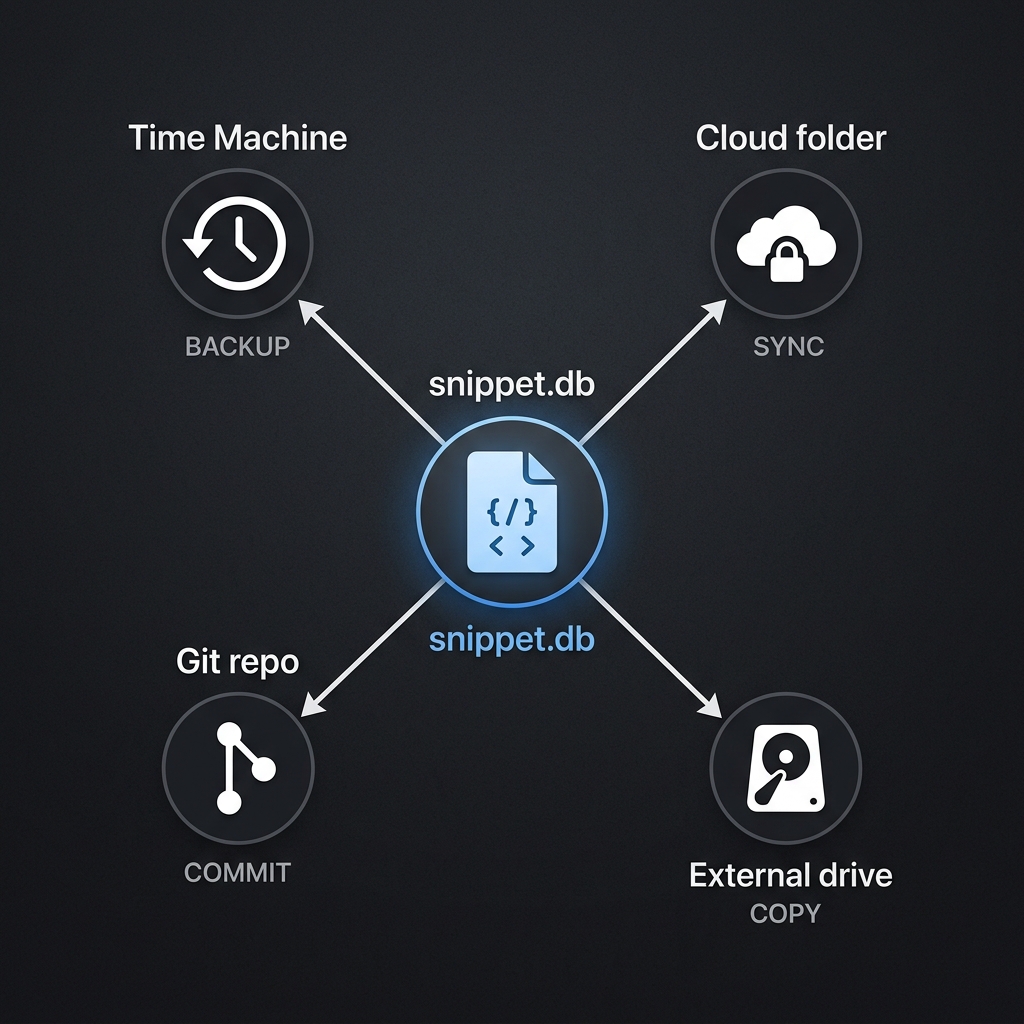
Time Machine on macOS backs up your entire disk, including your snippet database, automatically and continuously. The default settings capture everything; you don’t need to configure anything specific for snippets.
Cloud storage services work for backup without being your primary storage. Put your snippet database in a Dropbox or iCloud Drive folder, and it syncs to their servers as backup. You’re still working locally, with the cloud serving as offsite backup rather than primary storage. This gives you disaster recovery without the latency or privacy concerns of cloud-first tools.
Git provides versioned backup for those who want it. Your snippet database is a file that can be committed to a private repository. Every commit is a backup point you can restore to if needed.
Manual copying works too. Periodically copy your database to an external drive or another machine. It’s less automated but perfectly effective.
Multi-Machine Access
“I work on multiple machines and need my snippets everywhere.” Local storage handles this too, without cloud snippet managers.
File synchronization services like Dropbox, iCloud Drive, or Google Drive can keep your snippet database in sync across machines. The database is a file; file sync services sync files. You’re still accessing local storage on each machine; the sync just ensures consistency.
For more control, Syncthing provides peer-to-peer synchronization between your devices with end-to-end encryption. Your snippets never touch anyone else’s servers. Sync happens directly between your machines.
Even simple copying works. If you use the same machine most of the time but occasionally need snippets elsewhere, copying the database file to the other machine gives you access. It’s manual, but for infrequent needs, the simplicity is an advantage.
Making the Switch
If you’re currently using a cloud snippet manager, switching to local storage is straightforward. Most tools offer export functionality—Markdown, JSON, or CSV. Export your snippets, import them into your new local tool, verify everything transferred, then delete your cloud data.
ZetoPad imports from various formats. The process takes minutes, not hours, even for large collections. Your snippet history becomes a local file you control completely.
The psychological shift is the bigger change. You’re taking responsibility for your data—backup, sync, everything the cloud abstracted away. In exchange, you get speed, privacy, and control. For developers who value those things, it’s not a sacrifice but a preference.
Getting Started
Start by choosing a local tool that fits your needs. ZetoPad offers the best combination of features for most developers: fast search, encryption, code execution, and genuine local-first design. The fourteen-day trial is fully functional with no account required.
Set up backup before you accumulate much data. Time Machine, a cloud folder, or Git—whatever fits your workflow. Make it automatic so you don’t have to remember.
Then start saving. Every useful snippet, every clever solution, every piece of code you might want again. With local storage, there’s no concern about what’s sensitive enough to save—everything stays private. Save freely and search when you need it.