Code Snippet Keyboard Shortcuts: Working at the Speed of Thought

The difference between a tool you use and a tool that transforms your workflow often comes down to how you interact with it. A snippet manager you access through menus and clicks is a reference system—something you consult occasionally when you remember it exists. A snippet manager you access through muscle-memory keyboard shortcuts becomes an extension of how you think. The distinction matters more than feature lists.
Developing keyboard fluency with your snippet manager takes deliberate practice, but the investment pays returns every working day. Here’s how to think about keyboard-driven snippet workflows and how to build the muscle memory that makes them automatic.
The Philosophy of Keyboard-First
Keyboard shortcuts aren’t just faster than mouse clicks—though they are. More importantly, they keep your hands in position and your mind in flow. When you reach for the mouse, you break the physical continuity of typing. Your eyes track to the cursor, your arm moves, you scan for the right UI element, you click, and then you return to the keyboard. This takes perhaps two seconds in real time, but it interrupts your mental focus in a way that’s disproportionate to the time cost.
Keyboard shortcuts, once learned, require no conscious attention. Your fingers move, the action happens, and your mind never shifts from the work itself. You’re not interacting with a tool; you’re just accomplishing tasks. This is what “the tool disappears” means in practice.
The shortcuts worth learning are the ones you’ll use constantly. For snippet managers, three actions dominate: invoking the tool, searching, and using a result. If these three actions are smooth, you’ll use the tool. If any of them require mouse interaction or awkward key combinations, usage drops over time.
Essential Shortcuts
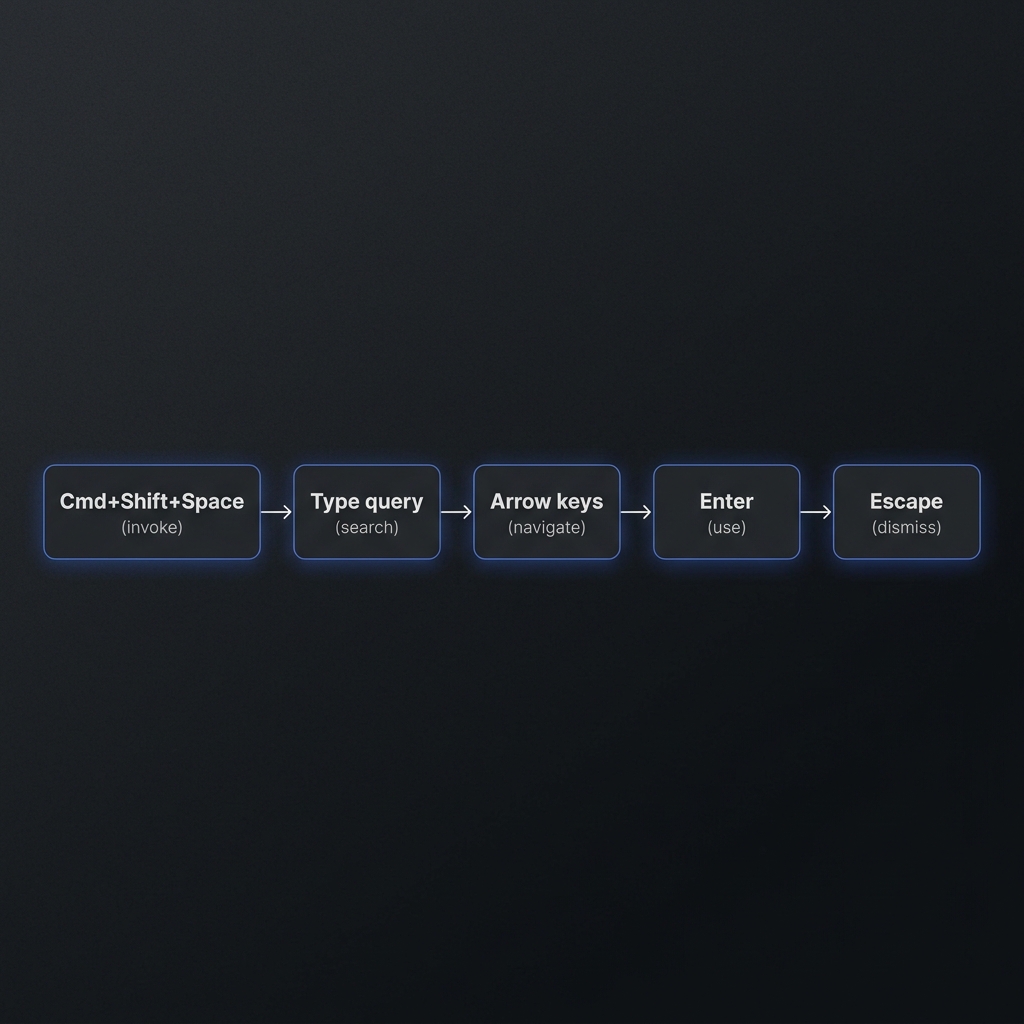
The global hotkey—the shortcut that brings up your snippet manager from anywhere—is the most important. This is the shortcut you’ll use hundreds of times a week, so it should be comfortable to press while your hands are on the keyboard in any typing position and memorable enough to become automatic.
ZetoPad defaults to Cmd+Shift+Space on Mac. This works well: the modifier keys are near each other, Space is easy to hit, and the combination is uncommon enough not to conflict with other applications. But the specific combination matters less than consistency. Pick something, stick with it, and let muscle memory develop.
Once the snippet manager is open, search should happen immediately. The best interfaces focus the search field automatically—you invoke the tool, and you’re already typing a query. No Tab key to reach the search box, no click needed. You think “I need that regex” and your fingers are already typing “regex.”
Navigating results with arrow keys keeps your hands on the keyboard. Down arrow moves to the next result, Up moves back, Enter opens the selected snippet. If the interface requires clicking to select results, that’s friction you’ll encounter on every use.
Copying or inserting the snippet should be equally direct. Cmd+C on a selected snippet copies it. Some workflows benefit from Cmd+Enter to insert directly at the cursor in your previous application. The goal is minimizing the steps between “I found it” and “I’m using it.”
Finally, dismissing the tool should be instant. Escape or the same global hotkey should hide the snippet manager and return you to where you were. No save button, no confirmation dialog, no cleanup required.
Learning the Shortcuts
Knowing shortcuts intellectually is different from using them automatically. The transition requires deliberate practice.
Start with just the global hotkey. For your first week, focus only on invoking the snippet manager with the keyboard every time. Resist the temptation to click its dock icon or use Spotlight. When you catch yourself reaching for the mouse, stop and use the keyboard instead. This single shortcut will become automatic within a week of consistent use.
Add search and navigation the second week. You’re already invoking with the keyboard; now practice the complete flow. Invoke, type your query, navigate with arrows, copy with Cmd+C, dismiss with Escape. Run through this sequence consciously a few times per day, even if you’re just testing that you remember the shortcuts.
The third week, it starts becoming automatic. You’ll notice you’re invoking, searching, and using snippets without thinking about the mechanics. When that happens, the tool has integrated into your workflow rather than sitting alongside it.
Resist the temptation to learn every shortcut at once. The advanced shortcuts—creating new snippets, adding tags, navigating folders—can come later. The core loop of invoke-search-use is what you need to automate first.
Customizing for Your Hands
If the default shortcuts don’t work for your hands or conflict with other tools, change them. A shortcut you can’t use comfortably is a shortcut you won’t use at all.
Consider your keyboard layout. Some key combinations that work well on US layouts are awkward on international keyboards. Some combinations that seem logical conflict with system shortcuts or other applications you use heavily.
Consider your other tools. If Cmd+Shift+Space is already claimed by Alfred or Raycast, don’t try to share it—reassign one or the other. Conflicts create hesitation, and hesitation erodes muscle memory.
ZetoPad allows customizing the global hotkey in settings. Pick something that feels natural to you, not what the defaults suggest. A comfortable non-default is better than an awkward default.
Beyond the Basics
Once the core shortcuts are automatic, advanced shortcuts add efficiency at the margins.
Creating new snippets with a keyboard shortcut saves the friction of mouse navigation. In ZetoPad, Cmd+N creates a new snippet when the tool is open. If you’re in another application and want to save selected code, Cmd+Shift+Space to open ZetoPad followed by Cmd+N gets you to a new snippet entry in two smooth keystrokes.
Editor shortcuts within the snippet manager matter for those who edit snippets frequently. If your snippet manager uses familiar text editing shortcuts—Cmd+A to select all, Cmd+D to duplicate a line, Cmd+/ to toggle comments—you can edit at full speed without learning a new vocabulary.
Navigation shortcuts help when you’re browsing rather than searching. In tools with folder structures, Cmd+1 through Cmd+9 can jump to favorite folders. Arrow keys plus Enter can navigate hierarchies without searching.
The Goal is Disappearance
The ultimate measure of keyboard fluency isn’t how many shortcuts you know. It’s how often you think about the mechanics of using the tool. When using your snippet manager feels like remembering code rather than operating software—when your fingers move and the code appears without conscious attention to the process—you’ve achieved what keyboard shortcuts are meant to provide.
This takes time. Weeks, not days. But it’s time invested in every future day of development. The developer who can pull up relevant code without breaking mental focus has a compounding advantage over the developer who interrupts their flow every time they need a reference.
ZetoPad is designed for this kind of keyboard-first use. The trial is free for two weeks—enough time to develop initial muscle memory with the core shortcuts and evaluate whether the tool fits how you work.